Jimdo is a robust, mobile responsive website builder that now hosts over 15 million websites! It offers a free basic service – which provides you with enough tools to build a functional website – as well as two-premium services. For those of you who have created your website on Jimdo or are planning to, here is a quick guide on how to embed your recurring Donorbox donation form on Jimdo website.
Steps To Embed Recurring Donation Form on Jimdo
Step 1
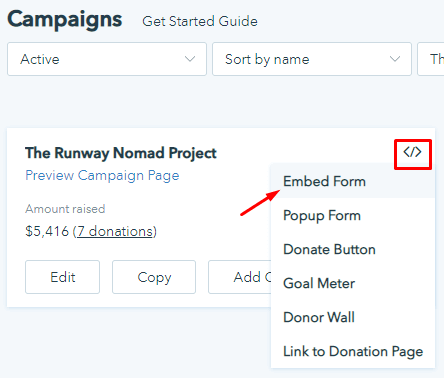
Go to your Donorbox campaigns page. Click the form integrations icon </> for your fundraising campaign. Then, select the “Embed Form” option.
Step 2
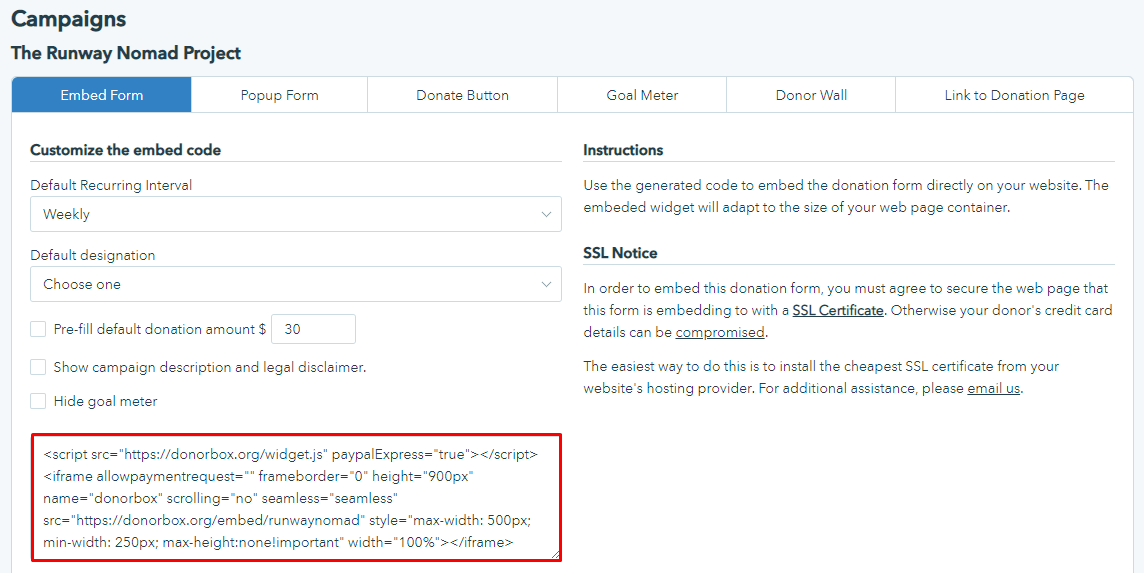
Customize your embed options and copy the auto-generated code.
Step 3
Now, go to your Jimdo website editor, and find or create the page onto which you want to embed your donation form. You can create a page by scrolling over your navigation menu and clicking “Edit Navigation”. Then, click “Add a new page” and type in the title you wish to give the new page, and click save.
Step 4
Now, go to your new page and click the “Add Element” button.
Step 5
Click “More Elements and Add-ons” to expand the elements menu, and find the “Widget/HTML” element.
Step 6
Paste your donation form’s embed code into the appropriate text box and click the save button on the bottom right.
Step 7
Your donation form should now appear on your new page in the website editor. No need to press a save or update button, as Jimdo automatically updates your website.
As such, your new page should immediately be ready to go! It should look something like this:
Raviraj heads the sales and marketing team at Donorbox. His growth-hacking abilities have helped Donorbox boost fundraising efforts for thousands of nonprofit organizations.

 Join the fundraising movement!